Build a clear prompt for everyday work, then run a quick safety check before you use the result. Copilot can help with the first draft—people remain responsible for the final decision.
Start here
Open Copilot for the first time
Use your Hafren work account so you are in the company version of Copilot.
Select Sign in and enter your Hafren Microsoft 365 email address and password. Complete the security check if prompted.
3
Check the account
Before entering work information, check your profile shows your work account, not a personal Microsoft account.
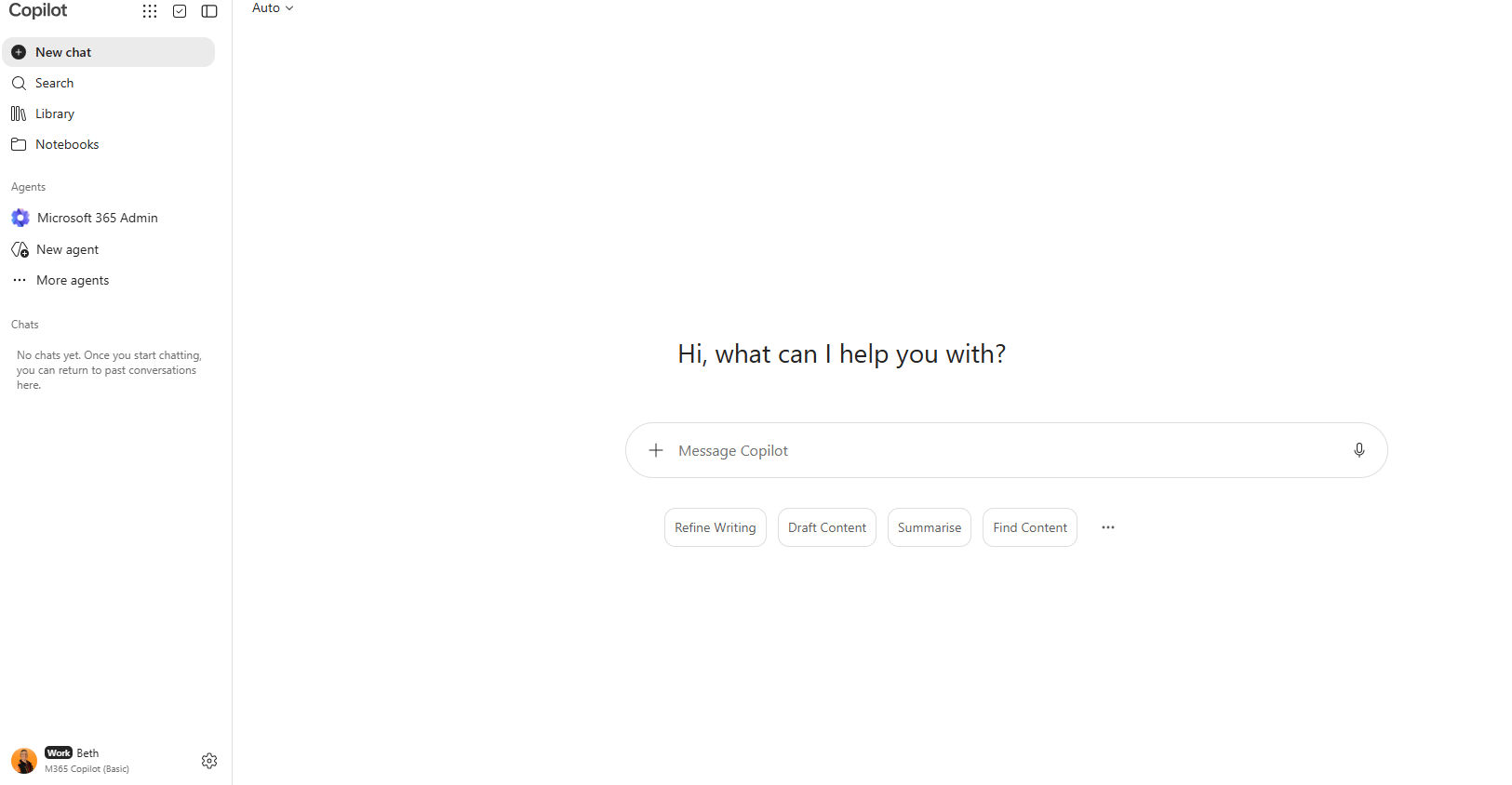
What the correct screen looks like
You should see the Copilot chat box and your work-account details at the bottom-left.
Correctly signed in
Check this corner shows “Work” and “M365 Copilot”. Your displayed name may be different.
Tip: select the screenshot to open it at full size. Do not continue with work information if this area shows a personal account.
Add Copilot to your favourites bar
In Google Chrome: while Copilot is open, select the star at the right of the address bar. Name it “Copilot”, choose Bookmarks bar, then select Done. If the bar is hidden, press Ctrl + Shift + B.
01 / Prompt builder
What are you working on?
Choose a task and add only the context needed to complete it.
Your prompt will appear here.
Before you paste: remove personal data, prices not intended for wider use, passwords, legal advice, HR matters, and anything commercially confidential unless your approved company policy expressly allows it.